
Debugger#
WebTigerPython has a visual debugger. The code can be executed step by step, and breakpoints can be set by clicking next to a line number.
The debugger has to be activated in the settings (Debugger (beta)). When it is activated, a debug button appears next to the run button, and an additional Debugger tab is displayed next to the output.
Note
The debugger can not be used with programs that import gpanel, pygame or gamegrid.
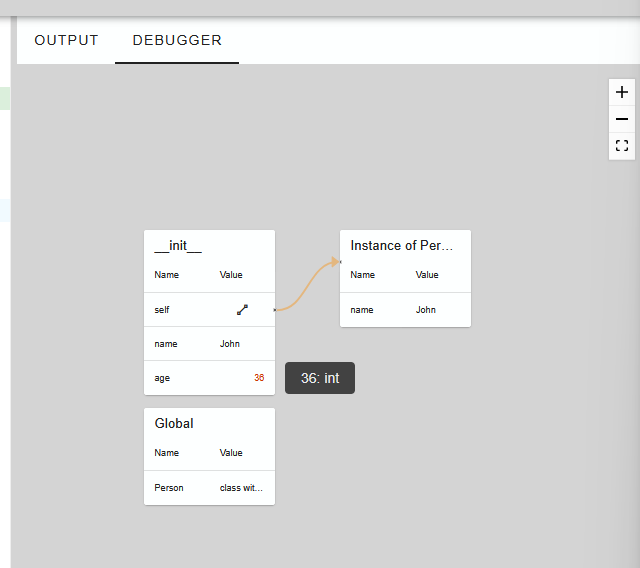
The scopes are displayed on the left side, the objects on the right side. Some information is not displayed by default, but can be seen on hover.
Self Ref#
It is also possible for an object to reference itself.
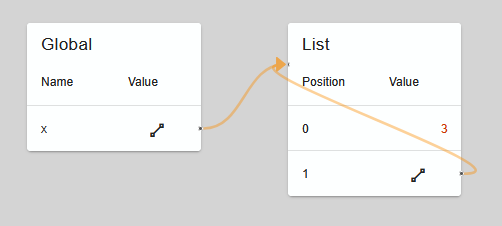
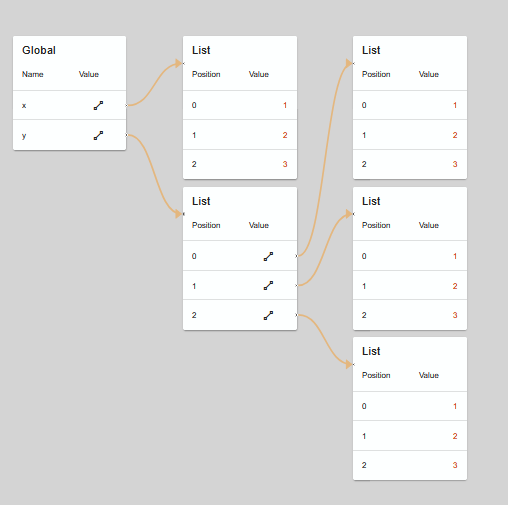
Nested Lists#
Nested lists can also be displayed.
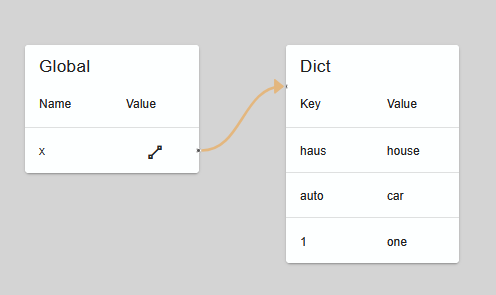
Dictionary#
Also a dictionary can be used with keys of varying types
Examples#
Caution
Debugging inside an embedded iframe currently does not work (see Embed WTP as an iframe). Use the link below each example to open it in WebTigerPython and debug it there.
Turtle Step by Step#
Recursion#
Open “Recursion” in WebTigerPython
Source: https://www.w3schools.com/python/gloss_python_function_recursion.asp
Classes#
Ideas for the visualization#
Resources#
https://mostlynerdless.de/blog/2023/09/20/lets-create-a-python-debugger-together-part-1/
https://florian-dahlitz.de/articles/how-to-debug-your-python-code
Writing a step by step expression evaluation debugger like Thonny : https://stackoverflow.com/questions/40639652/tracing-python-expression-evaluation-step-by-stepb